Unlock the Secret to Creating Stunning Vintage Looks in After Effects — By Hand and with Seven FREE After Effects Presets!
Are you tired of using generic presets to create vintage effects in After Effects? It’s time to take your skills to the next level! Creating a convincing vintage effect is all about subtle tweaks and attention to detail. While presets can be a great starting point, they won’t give you the unique and authentic look you’re after.
But don’t worry, we’ve got you covered! In this tutorial, we’ll show you how to create a custom vintage effect in After Effects by hand. We’ll also share some proper ways to use presets to create compelling vintage looks in AE.
Tutorial: Create a Vintage Effect in After Effects
Get ready to learn how to create a convincing vintage effect using native plugins and effects. Plus, we’ll share some free After Effects presets to use when working on vintage projects. These presets aren’t meant to replace professional color grading, but they’re a fantastic place to start if you need to quickly create a vintage effect. Check out the tutorial below:
Download Vintage Effect Presets and Footage
Quick note: These effects presets only work for After Effects CC 2012 and above.
How to Create a Vintage Effect in After Effects By Hand
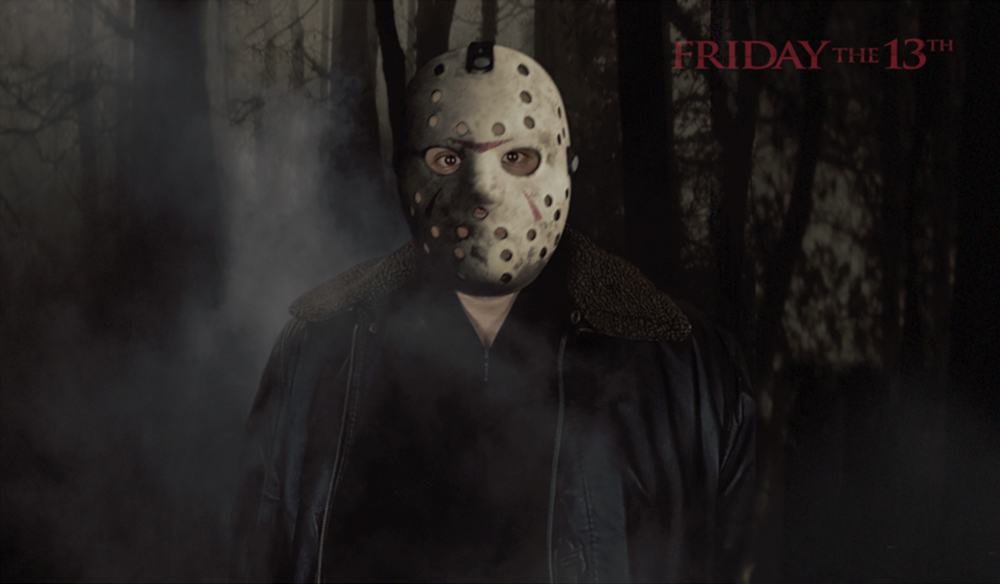
Ready to take your vintage effects to the next level? Let’s dive into a step-by-step tutorial on how to create a vintage effect by hand. We’ll work with the image below to create our effect:

Step 1: Duplicate Footage in Timeline
First, create a new composition and drop your footage inside. Drag your video footage to the timeline and hit Command+D twice to duplicate your footage. You should end up with three total clips.
Step 2: Shift One Layer’s Channel to Red
Apply the Shift Channels effect to one of the footage layers in your timeline. Change the Take Green From and Take Blue From to Full Off. This should yield a red-only image.
Step 3: Shift One Layer’s Channel to Green
Apply the Shift Channels effect to one of the remaining footage layers in your timeline. Change the Take Red From and Take Blue From to Full Off. This should yield a green-only image.
Step 4: Shift One Layer’s Channel to Blue
Apply the Shift Channels effect to the remaining footage layer in your timeline. Change the Take Green From and Take Red From to Full Off. This should yield a blue-only image.
Let’s take your image to the next level with a vintage effect! First, make sure your image is set to blue-only. Layer the blue on top of the red and green layers. Now, let’s apply a Radial Blur effect to the blue layer. Set the Amount to 13 and the Type to Zoom.
To enhance the colors, create a new Adjustment Layer and name it Color. Make sure it’s on top of the other layers. Apply the Brightness & Contrast effect to the Adjustment Layer and hold down Option while selecting the Stopwatch icon next to Brightness. Type in wiggle(5,2); to create a “film flicker” effect.
Next, apply the Curves effect to the Adjustment Layer and adjust the black and white points to make the image less contrasted. Apply a similar curve to the blue channel. Reduce the vibrance by setting it to -10.
To soften everything, apply a Fast Blur effect to the Adjustment Layer and set the Blurriness to around 2 or 3. Finally, add some grain by applying the Add Grain effect and selecting the Kodak Vision 500T preset.
For a finishing touch, create a new Adjustment Layer and name it Vignette. Adjust the settings to create a subtle vignette effect. And voila! Your image now has a vintage feel to it.Learn how to create a stunning vintage effect in After Effects with these easy steps and free presets! Follow along as we guide you through duplicating footage, applying shift effects, and adding a fast blur effect to create a convincing vignette. Then, apply a brightness and contrast effect and mask the adjustment layer to create a vintage look. With the included free presets, you can achieve this effect in just seconds! Simply duplicate your footage three times, apply shift effects, change the transfer mode, and add a radial blur effect. Finally, create an adjustment layer and apply the vintage preset of your choice. It’s that easy! Try it out and see the results for yourself.Step 5: Create an Adjustment Layer and Apply a Vignette Preset
Are you ready to add some vintage flair to your After Effects project? Let’s get started! First, create a new Adjustment Layer by going to Layer>New>Adjustment Layer and name it “Blurred Edges”. Now, apply either the Vignette Blur or the Petzval Vignette Effect to the Adjustment Layer. Don’t be alarmed if it looks a bit strange at first.
Next, grab your Pen Tool (shortcut: G) and create a Vignette Mask around the edges of your frame. Don’t worry about making it a perfect circle; imperfect shapes often look better. Once you’ve finished your shape, change the Mask function to Subtract and Feather out the edges. A value of around 400 should do the trick.
And that’s it! We’ve condensed a fourteen-step process into just five. Export your project and you’re done!
Great Places to Find Vintage Inspiration
When it comes to vintage film emulations, using reference images and footage is key to achieving the perfect look. Some of our favorite places to find vintage inspiration are Shutterstock, Offset, and Pinterest. These sites offer a wide range of professional vintage looks. And if you’re into photography, VSCO is a great place to find color grading presets.
How do YOU create vintage color grades? Share your tips in the comments below.