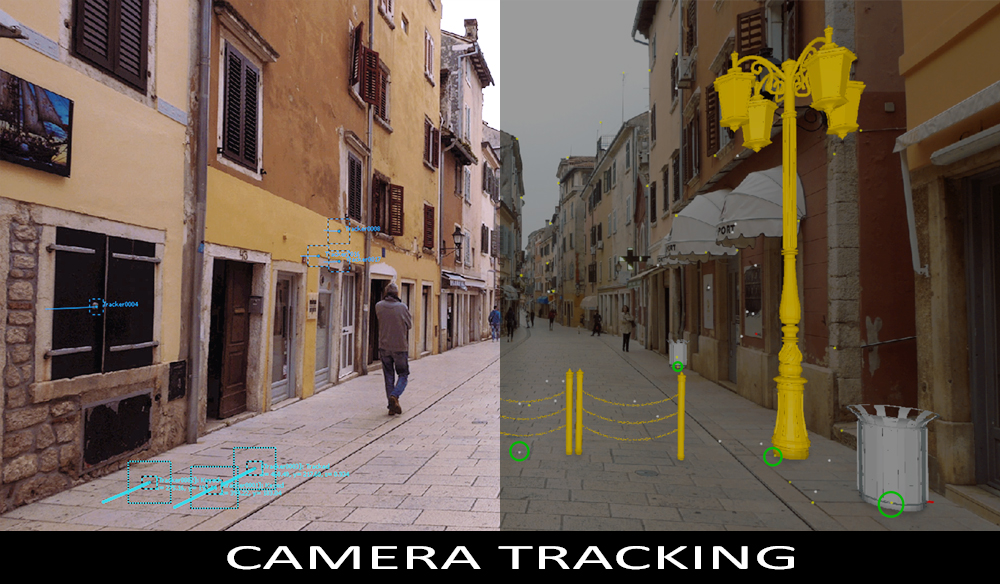
Welcome to the second part of our series on integrating 3D models into your footage! Today, we’ll dive into the exciting world of 3D scene creation and lighting techniques.
Are you ready to take your video projects to the next level? In our first article, we covered camera tracking using PFTrack as our primary tool. Now, we’ll explore how to export a virtual camera to an external 3D software and play the sequence with a few 3D test objects. If you missed Part 1, be sure to check it out!
- How to Integrate 3D Elements into Video Footage – Part I
Take a look at the smooth camera tracking we achieved in our last article. While we didn’t apply any lights, materials, or shadows, we’re now ready to explore the exciting world of 3D integrations.
Not Just Static Props
Before we dive into lighting and rendering, let’s explore the different types of 3D integrations you can perform on a video. These include:
- Animated 3D objects in place, which involves adding a pre-made animation and sticking the mesh to a marker.
- 3D objects moving along a path, which requires more work on feature tracking.
- Object/geometry tracking, which follows an actual element of the shot and integrates a 3D object onto it.
Check out this commissioned work for a client in Nashville, where we inserted a blue car into different shots:
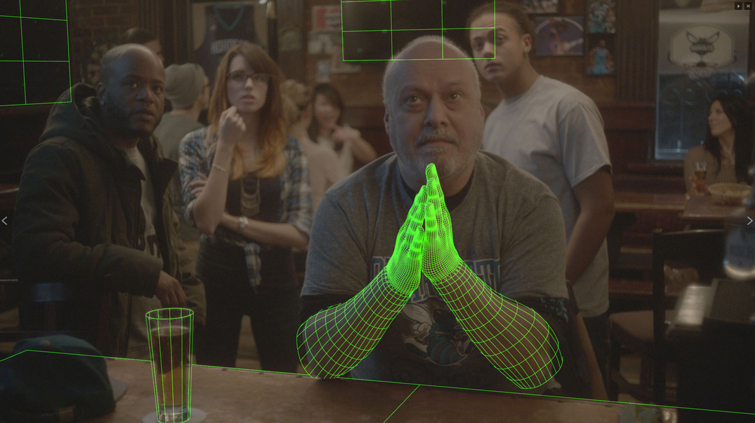
Object/geometry tracking is perfect for tracking moving objects in a shot. For example, we can add a pair of 3D arms overlapping the real ones:
Tracking the Face of a Character
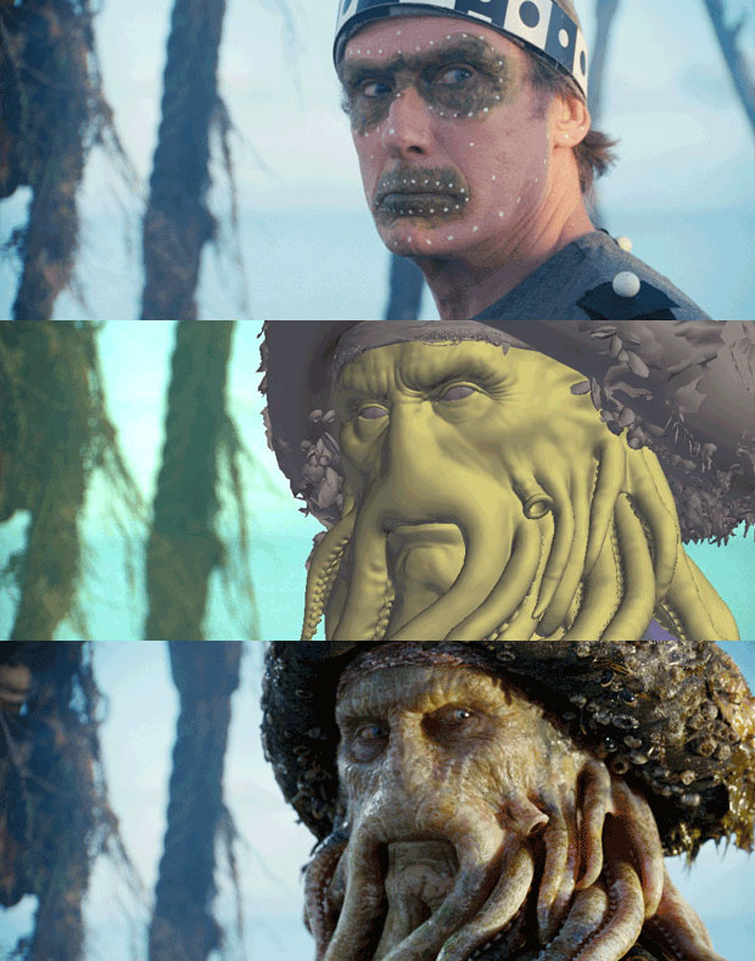
If you’re working with actors’ faces, a marker-based solution for object tracking is ideal. Check out this example from the Pirates of the Caribbean saga:
Working in your 3D Scene – Intro
Now, let’s dive into building a 3D scene for one of the integrations we covered in Part I. Since we’ve already exported the virtual camera to Maya, we’re ready for the next step.
Testing your 3D Object Quality with Lighting
Before we get started with lighting and rendering, it’s crucial to ensure that your model works under any lighting conditions. Make sure that the shading responds well to different lighting scenarios.
Are you struggling with lighting and shading in your 3D models? Don’t worry, we’ve got you covered! First things first, make sure your model topology and shading parameters are accurate. But here’s a pro tip: use physically based rendering (PBR) materials to automatically deal with energy conservation and avoid mistakes. And don’t waste time building a complex lighting setup. A simple HDRI is perfect for testing the result at 360 degrees.
Now, let’s talk about matching the environmental lighting in your 3D scene to the footage. It may seem daunting, but we’ve got a checklist to make it easier. Check the time of day, browse a rich HDRI library, locate the sun if it’s in the shot, study the shadow quality, and consider any artificial lights that may affect your model.
But wait, there’s more! In our next article, we’ll teach you how to fake environment reflections on a shiny surface. Stay tuned for Part III.
In the meantime, check out this practical example of a CG car in a real clip. And when it comes to lighting setup in Maya, keep it simple with a suitable HDRI, directional light with the right orientation, and invisible geometries to capture shadows. And if your model is moving, build a motion path with a curve for the car to follow.
Don’t let lighting and shading stress you out. Follow these tips and you’ll be ready to go in no time!Get ready to take your post-processing skills to the next level! In this issue, we’ll dive into the world of rendering passes and explore how they can enhance your After Effects projects. But that’s not all – we’ll also show you the power of masks in post-processing. See how we used them to make a car appear behind a cliff and remove unwanted shadows on a plane.
And that’s not all – we’ll also discuss the importance of building custom geometries in your 3D scenes. With PFTrack, you can export trackers as locators in 3D space and approximate a 3D road with the correct slope. We’ll show you the geometries we built for our 3D scene, including the road, terrain, bridge, and even a small tree to add more realism to the shot.
Check out our Maya scene with custom geometries and see how a fixed camera can follow the car through the whole shot. You’ll notice the terrain isn’t flat but has variations in height, creating a more immersive environment. And don’t miss the short jump as the car approaches the bridge – it’s all about integrating your scene seamlessly.
Get inspired and take your post-processing skills to the next level with these tips and tricks. Let’s dive in!Check out this amazing video clip! But have you ever wondered how they create such realistic shadows and lighting effects? In this article, we’ll explore the importance of shadows in creating depth and realism in video clips. We’ll also discuss some key considerations when integrating 3D objects into video, such as choosing the right HDRI and determining the orientation of the directional light.
One important aspect to keep in mind is the terrain. By capturing the shape of the car shadow, we can highlight the steepness of the terrain and make the scene more dynamic. And even if we don’t have a corresponding 3D model for a tree or other element, we can still add a generic prop and approximate its position to ensure that the projected shadow matches the real one in the video clip.
To create a realistic lighting setup, we only need one directional light and an HDRI. And by using simple geometries that capture only the shadows and are not visible as final rendered objects, we can keep the integration process smooth and efficient.
If you’re interested in experimenting with different solutions for integrating 3D objects into video, check out the clip at the end of this article. And be sure to follow me on LinkedIn for more tips and tricks on creating amazing video effects!

Other Articles
Sound Effects: The Overlooked Heroes of the Film Industry
“Part I: Incorporating 3D Elements into Video Footage Made Easy”