Upgrade Your Videoconferencing Game
Real-world events may be returning, but online meetings are still going strong. With hybrid work becoming the norm, platforms like Zoom and Teams are here to stay. However, most people’s webcams and microphones make them look and sound bad. Plus, eyelines are all wrong, making it difficult to connect with your audience. But fear not, video professionals! You can upgrade your setup without breaking the bank.
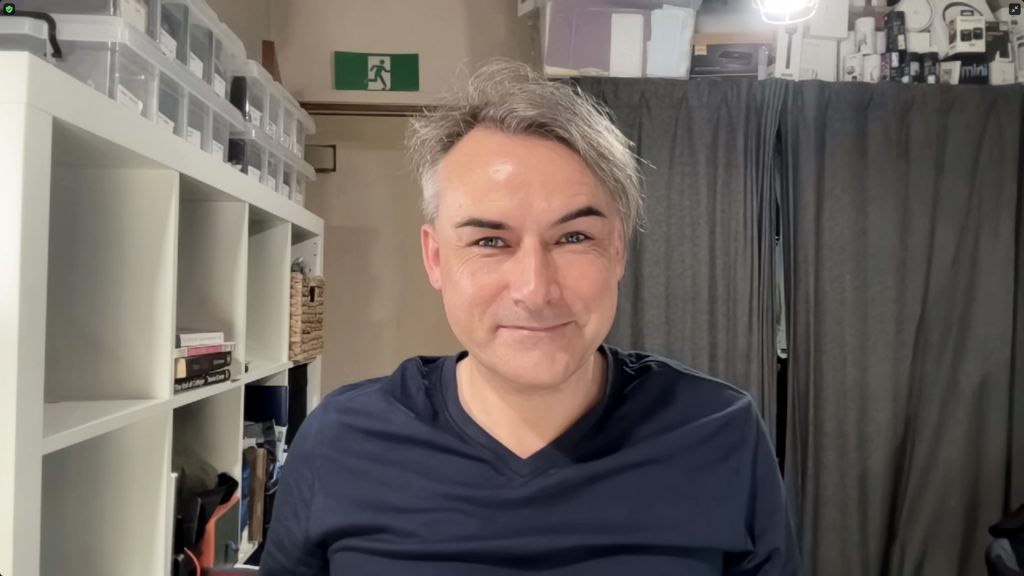
By using a real lens with the fastest aperture you can manage, you can impress your audience with a background blur that looks great even on low-resolution videoconferencing setups. And with the right equipment, you can sound better too. So, how do you get started?
Don’t Use Your iPhone as a Camera
While Continuity Camera allows you to use your iPhone’s back camera as a webcam, the natural blur is not enough to satisfy bokeh enthusiasts or impress casual viewers. Instead, look for an older camera you’re not using anymore and find a standard, fast prime lens. Make sure your camera has HDMI-out and output a clean HDMI signal. You may need an interface box to convert the signal into a webcam-style feed through USB. Point the camera at yourself with the fastest lens you can muster, and make sure you have good lighting. Avoid ring lights and go for soft LEDs or app-controlled color-changing light bulbs.

With the right setup, you can impress your audience with a professional-looking video and audio quality. So, upgrade your videoconferencing game today!
Are you tired of using a bulky microphone that needs to be placed close to your mouth during video calls? While it may sound great for recording tutorials, it can be distracting for your audience to see it in the video. And even if you switch to using a shotgun or XLR mic hooked up to your Mac through a USB interface, the heavy audio compression in video chats can still affect the quality of your sound. Plus, the delay on HDMI outputs can cause your audio to be out of sync with your video, which can be quite distracting.
But don’t worry, there’s a solution! The simplest way to ensure that your audio and video are in sync is to use a microphone that works with your camera. If your camera can’t accept USB mic input, you can use a lapel microphone or connect a regular desk microphone to a wireless lapel mic and feed the receiver into your camera. Another option is to use an interface that lets you connect an external microphone with controllable delay.
Once you’ve found an audio solution that works with your video, the next step is to fix the eyeline problem. To look straight at the people you’re talking to, you’ll need a teleprompter with a small video monitor that reflects into your eyes. This setup may be inconvenient, but it’s perfect for impressing special clients or presenting at important meetings or conferences.
So, are you ready to level up your videoconferencing game? Impress your co-workers and clients with your professional setup and enjoy the benefits of better audio and video quality. And if your camera can record while it outputs to HDMI, you can even capture a better quality version of your presentation for later editing. The possibilities are endless!Check out these exciting articles on the latest trends and innovations in the film and production industry! From NVIDIA Canvas using AI to create stunning landscapes, to the impact of AI on filmmakers and other creative professionals, there’s something for everyone. Don’t miss the Cannes Virtual Production Summit, Sony’s showcase of VENICE 2 high frame rate modes and Rialto 2, and the game-changing Pixotope Pocket for Virtual Production. Plus, get insider tips on the best practices for Zoom.us and a review of the new Laowa OOOM 25-100mm T2.9 Cinema Lens and Blackmagic Design ATEM Mini Pro ISO. Stay up-to-date with the latest news and developments in the world of film and production!

Mixo: AI-Powered Website Building in Seconds
The Present State of Text-Based Editing